Host and viewers have different roles
The host needs an activated Shaitan license, the Windows launcher and CS2 in a supported match. The host keeps the launcher and internet connection active to supply the session.
Viewers need the current guest link, internet and a browser on a phone, tablet or computer. Keep your product key, email codes and account details private.
Each session allows up to 64 simultaneous viewer connections. Each open radar tab counts, including the host’s own browser view. Viewers do not need another license.
Copy the current guest link
Start a radar session in the launcher and wait for Running. Guest link and Copy are enabled when the radar is ready, not while it is starting.
- Select Copy beside Guest link. If the clipboard is busy, select the whole field and copy its contents.
- Share the complete guest link privately with the people you want to invite.
- Open the complete guest link in a browser on the viewing device.
- Check the map and current positions while the host is in a match. Keep the host’s launcher running.
Check access
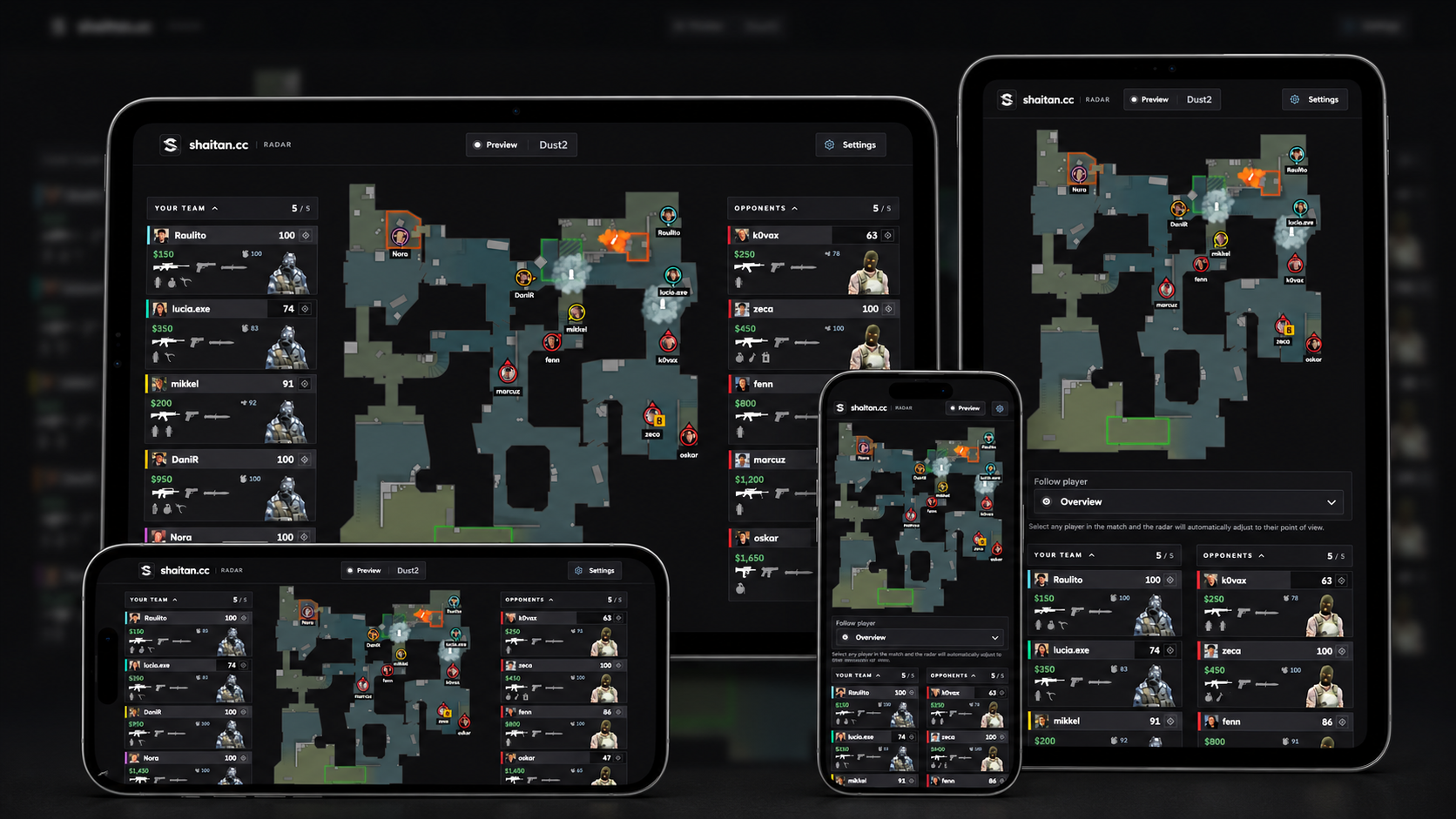
Open the current guest link in a browser on any device: a phone, tablet or computer. You can view the radar from any network with internet access, without sharing the host’s Wi-Fi, opening router ports or configuring the network.
Choose a view on each device
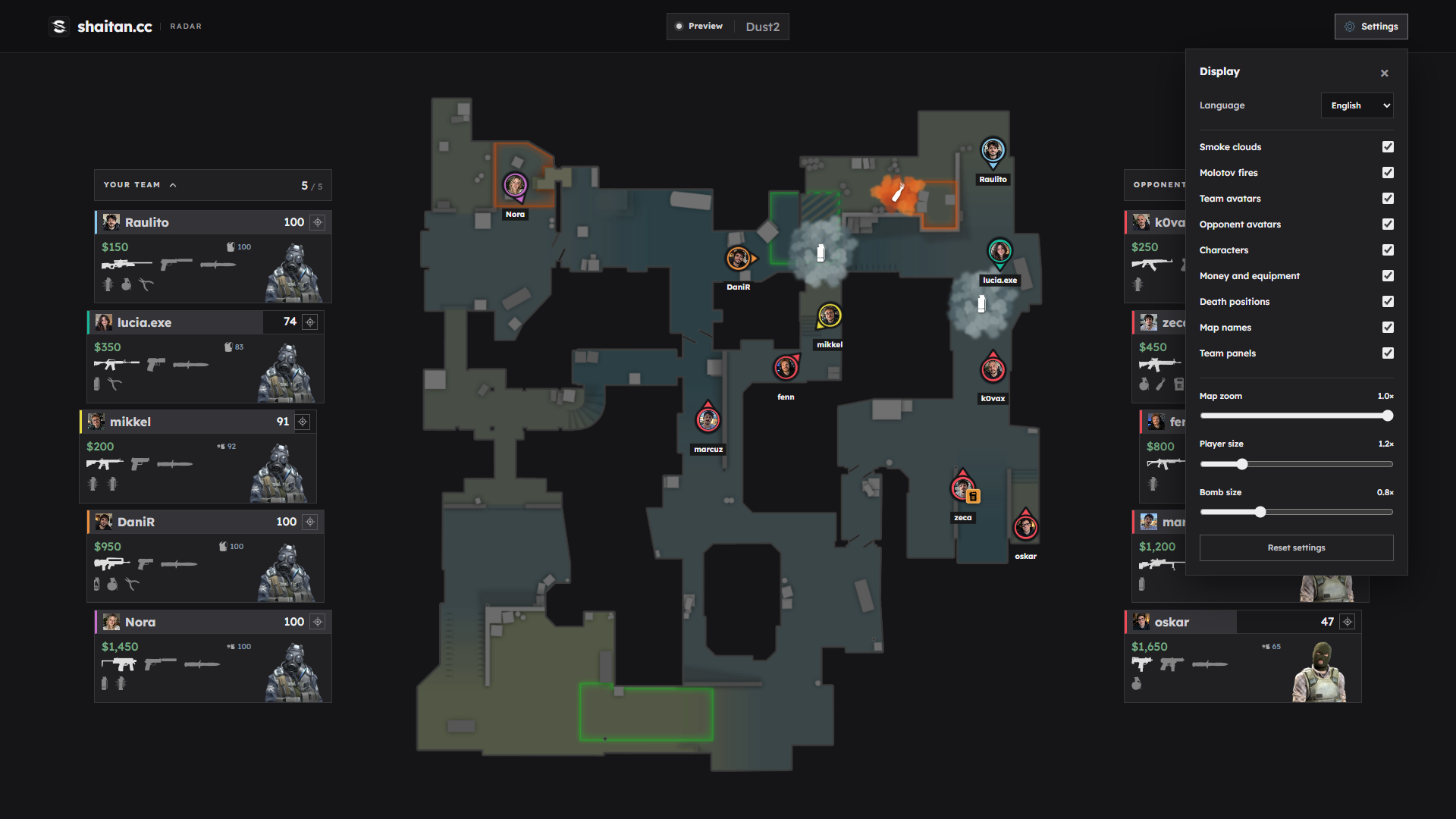
Open Settings to choose a language, adjust zoom and change the visible information.
Use the selector below the map to follow a player or return to the overview. On smaller screens the panels are rearranged around the map.
You can also open the guest link in the browser built into Steam’s in-game overlay.
Use the new link for each new session
Starting a new radar session generates a new guest link. Send it again to viewers. A bookmark or message from an earlier session is not the link for the new one.
Treat the guest link as access to your session and share it only with intended viewers. Opening it does not require a viewer account. Do not post it publicly if you want to control who receives it.
Selecting Stop ends the radar and closes the launcher. Closing CS2 also ends the session.
If a viewer cannot see the match
First check that the host’s launcher says Running and the viewer has the complete current link. If the host started a new session, copy its new address instead of editing the old one.
If the page says Waiting for data or Waiting for a match, check that the host has joined a supported match. If it is reconnecting, check the internet connection on both devices.
If the map fails to load, reload the page. If the session ended, the host must start a new one and send its new link. If many viewers are connected, check the 64-connection limit and close unused radar tabs before inviting more people.