
Before you start
You need Windows 10 or 11, Counter-Strike 2, an internet connection, a Shaitan license and access to the email linked to it. The Windows PC runs the launcher; a phone, tablet or another computer only needs a browser to view the radar.
Close CS2 and Steam before opening the launcher. The launcher can close them at startup and keeps them closed until you start the radar. Finish your match first, and wait until after pressing Start to open the game.
Shaitan supports CS2 modes on official Valve and private servers, with or without VAC. FACEIT, ESEA and similar services are not supported.
Activate the license and download the launcher
Open the official sign-in page and enter your email. For a first license, enter its product key when requested, verify the six-digit code from your email and review the redemption before confirming. The license period begins when you confirm activation.
Your account shows available time and Download launcher when your access permits it. Download the standalone launcher only from shaitan.cc. Use the same email on the website and in the launcher.
If your license is already activated, sign in with its linked email.
Sign in to the launcher
Open the downloaded launcher on the PC you intend to use. Its interface is available in English, Spanish, Portuguese and Russian. Choose the language before starting a radar session.
- Enter the email linked to your activated Shaitan account and select Continue.
- Review the address, then select It’s correct. Use Change email if it needs correcting.
- Enter the six-digit email code and select Verify and continue. If needed, wait for the resend countdown and select Resend code.
- Wait for the account check and PC link. On later launches the launcher can check the saved sign-in automatically.
Start CS2 and the radar session
On the Radar screen, keep Launch CS2 automatically enabled to open the game through Steam. Open radar when ready controls automatic opening of the guest link in your default browser.
Select Start. If automatic game launch is disabled, open Steam and CS2 after the launcher reaches Waiting for CS2. Join a supported match. Wait for Running before copying or opening the link.
When ready, the Guest link field, Copy and Open radar become available. Select Open radar if a browser has not opened automatically. Keep the launcher running during the session.
Check the radar in your browser
If the page says Waiting for data or Waiting for a match, check that the host has joined a match and wait for the map to appear.
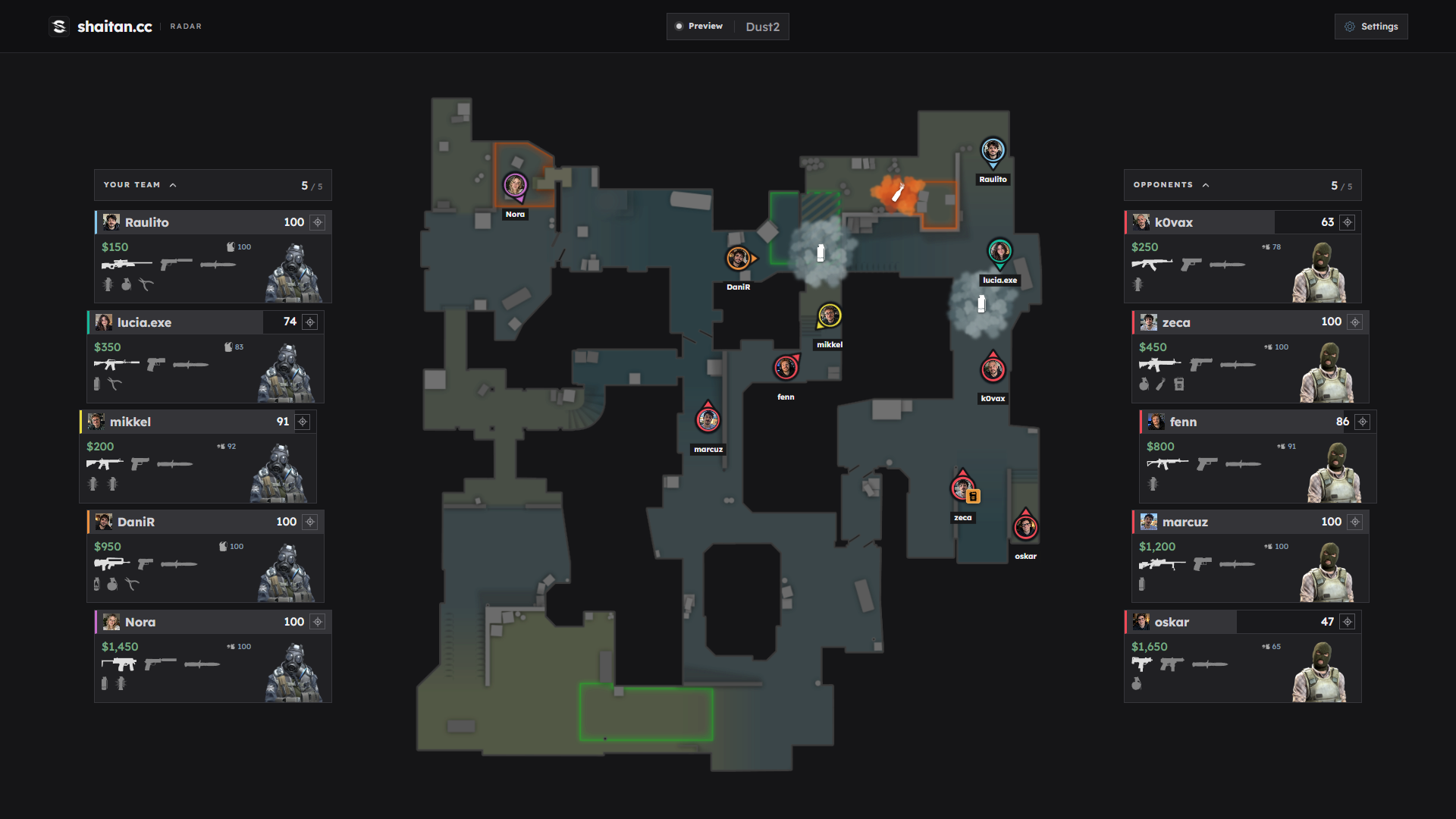
Once connected to a match, check the map name, player markers and team panels. Positions and equipment should update with the match. Open Settings to choose the display language and adjust zoom, marker sizes and visible information.
The web radar supports English, Russian, Spanish, Portuguese, Simplified Chinese and Traditional Chinese. Its language selection is independent of the launcher.
If setup stops or the radar does not appear
If the code does not arrive, check the email and spam folder, then use Resend code after the countdown. Enter the code requested by the screen you are signing in to.
If the launcher directs you to shaitan.cc, check available time and account status. An account linked to another PC may need a PC change request. If an update is required, download the new launcher from your official account.
If the browser does not open, use Copy and paste the complete guest link into its address bar. If the map cannot load, retry loading the page. If the session has ended, reopen the launcher and use its newly generated link.
Stop ends the radar and closes the launcher after showing its status. Closing CS2 also ends the running session. To start again, reopen the launcher and share the new link instead of a saved link from an earlier session.